Editor Overview
The Opal editor is the same in the browser and in Opal Desktop: the stage sits in the center, editor panels surround it, and the top bar switches projects, scenes, workspaces, tools, and play mode.
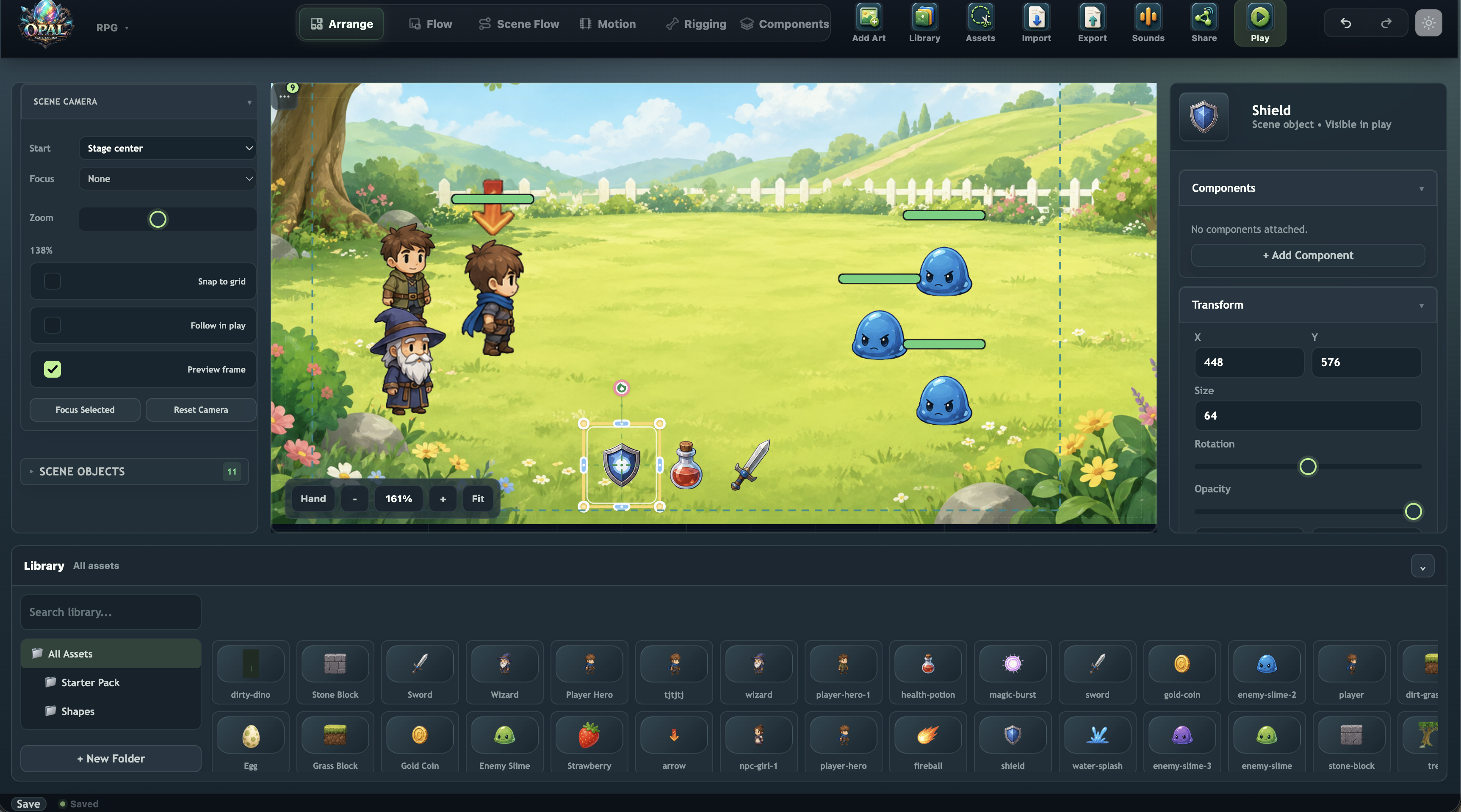
Top Bar
Left to right:
| Area | Purpose |
|---|---|
| Opal logo | Site/editor home anchor |
| File | Save, import/export, open project; publish to arcade in the browser editor |
| Project picker | Switch or open projects (quick switch; full management via launcher) |
| Scene picker | Quick-switch scenes; create, rename, duplicate, reorder, and choose the start scene in the Scenes dock panel |
| Workspace tabs | Switch editing mode |
| Play controls | Play in viewport, fullscreen, stop, stats |
| Undo / redo | History buttons |
| Add | Import art, library assets, and sounds |
| Agent | Opens the project assistant |
| Help | Online tutorials/docs, console, problems, about |
| Theme | Light/dark toggle and palette customizer |
Settings (⚙, Ctrl+, / Cmd+,) | Editor preferences (color mode, snap to grid, colliders, play stats, layout resets), project input, multiplayer rooms and hosting, the keyboard-shortcut reference, and your account |
| Account | Sign-in state and account menu in the browser editor |
Desktop adds folder commands on File: New Project…, Open Folder…, Reveal Project Folder, Duplicate Project…, Cloud Sync…, and more. Full list: Opal Desktop. Download it from opal-engine.com/download.
File Menu
Use File for project I/O and publishing:
| Command | Use |
|---|---|
| Save | Flush pending autosave now (⌘S / Ctrl+S) |
| Import Scene... | Import a scene file into the current project |
| Open Project... | Open a .opal project bundle from your computer |
| Open Recent | Quickly reopen up to 5 recent projects (with scene counts) |
| Export Scene | Download the active scene as opal-scene.opal (falls back to .json only when no blob path is available) |
| Export Game | Download the full project as a .opal backup |
| Publish to Arcade… / Manage Arcade Listing… | Ship the current build vs edit the store page without re-shipping (browser editor) |
| Cloud Sync… | Desktop only — upload, download latest, or sync the project folder with your Opal account |
Add Menu
Use Add for assets:
| Command | Use |
|---|---|
| Add Art | Import images and place them in the scene |
| Library | Import images into the asset library without placing them |
| Sounds | Import or manage audio clips |
Workspaces
Click a tab — or an item under Flow ▾, Animate ▾, or Create ▾ — to change what you are editing. The stage and panels adapt to the current workspace.
| Tab | Workspace | Primary use |
|---|---|---|
| Arrange | Scene layout | Place objects, hierarchy, transform gizmo, inspector |
| Flow ▾ → Object Flow | Per-object Flow | Visual scripts attached to the selected object |
| Flow ▾ → Scene Flow | Scene/project Flow | Global scene rules, transitions, startup logic |
| Animate ▾ → Motion | Motion | Keyframe object properties and drive Motion Machine states |
| Animate ▾ → Rigging | Skeleton Studio | Bones, slots, IK, mesh weights, skins, skeleton clips |
| Create ▾ → Pixels | Pixel Studio | Draw sprites, cut photos, bake PNG / .ssb / tilesets |
| Create ▾ → Art | Art Canvas | Slice sheets, assemble frames, preview animation, save .ssb bundles |
| Create ▾ → Sound | Sound Canvas | Compose, process, preview, and bake WAV sound effects |
| Create ▾ → FX | Particle Canvas | Compose particle plans, preview, and bake .pfx effects |
| Scripts | Script editor | OpalScript components, Behavior Components, and custom Flow nodes |
| UI | UI designer | HUDs, menus, buttons, labels, UI layers |
Arrange is the home base. Most projects bounce between Arrange, Object Flow, Create (Pixels / Art / Sound / FX), Motion, Scripts, and Play.
Arrange Workspace
Stage
The stage is the main scene canvas.
- Click an object to select it.
- Drag to move it.
- Use handles for scale and rotation.
- Scroll or pinch to zoom.
- Hold Shift while scrolling to pan horizontally with a mouse wheel. With Shift held, two-axis trackpad scrolling keeps both pan directions.
- Press Q to toggle the radial quick-tools when an object is selected.
Layout Tools
Open Layout in the stage toolbar to arrange selected scene objects:
| Tool | Behavior |
|---|---|
| Align | Align edges or centers to the selection bounds. Choose Stage to move the whole selection together to a stage edge or center. |
| Distribute | Give three or more selected groups equal horizontal or vertical edge gaps, keeping the first and last groups in place. |
| Space | Set an exact horizontal or vertical edge gap for two or more groups. Zero makes adjacent bounds touch; the first group stays in place. |
Bounds account for rotation, scale, and descendants. Selecting a parent and its child moves their group once. Groups whose selected root is locked or is the pinned prefab origin stay fixed: selection alignment can use them as anchors, while stage alignment, distribution, and spacing require every selected group to be movable.
Distribution can overlap bounds when space is tight. If equal gaps would change the groups' spatial order, the action explains why it cannot fit and leaves the scene unchanged.
Each action is one Undo step. Layout tools are available in Arrange while editing, and the command palette (Ctrl+K / Cmd+K) exposes the same actions. Fractional positions and dimensions survive saving, reopening, and export.
Scene Hierarchy
The left panel lists objects in a tree.
- Click to select.
- Drag to reorder or reparent.
- Multi-select with
Ctrl/Cmdplus click. - Use the context menu for duplicate, delete, group, rename, and related actions.
- Select the scene root for scene-level inspector fields.
The same left drawer also hosts the Assets tab.
Inspector
The right panel edits the current selection:
- Transform
- Object properties
- Art and image assignment
- Interaction settings
- Components and component fields
- Object variables
- Motion or skeleton summaries
- Prefab actions and overrides
With multiple objects selected, shared fields show mixed values until edited.
During Play, component fields show the running object's values. Supported settings can be changed live in the inspector: Joint Motor Controller speed, force and idle behavior; standalone Revolute Joint 2D motors; and character controller speed, acceleration, friction and platformer jump/gravity settings. Script components also expose their writable [Property] fields. Controller-owned joint motors stay read-only; tune their Joint Motor Controller instead. Camera inspection includes the live view position, zoom and follow state. Other settings and component attachments require stopping Play.
The Live tuning panel offers Preview changes, with a before/after comparison and a checkbox for each change. Choose what to keep, then Apply selected and Stop. This stops Play and applies only the reviewed fields as one scene undo step. Normal Stop discards live edits. Spawned objects, transforms, runtime outputs, replaced components and stale previews cannot be copied into the authoring scene. Live tuning is unavailable in a network replica; use local or host Play.
Object and asset pickers retain unavailable saved references with a Missing label. Choosing a replacement repairs the reference; objects with the same name include their IDs so you can distinguish them.
Workbench Dock
The bottom dock can host:
| Panel | Use |
|---|---|
| Assets | Browse, import, inspect, and open or place library items |
| Graph | Inspect relationships and dependencies |
| Scenes | Manage scenes and choose the start scene |
| Variables | Declare shared values and find their uses |
| Console | Runtime/editor messages |
| Problems | Validation warnings and repair hints |
Layouts are saved per workspace, so the panels you use in Art do not have to match Arrange or Object Flow.
Use a tab's menu to move or close its panel. Maximize panel temporarily gives the bottom panel the work area; Restore panel size returns to your saved sizes. Narrow windows collect movable panels below while keeping native Frames and Timeline tools available. Widening restores the desktop arrangement.
The persistent bottom shelf beside Saved has Variables, which opens the GameState dock panel, and Input, which opens Settings → Project Input. Both remain available when the dock is collapsed. See Variables and GameState and Input and Controls.
Object Flow And Scene Flow
Object Flow opens a node graph for the selected object. Scene Flow uses the same graph UI for scene-wide rules.
You will see:
- Graph canvas
- Node catalog
- Node and wire inspector
- Rule/event lists
- Live Flow overlay in Play mode
Each rule starts from an event such as On Tap, On Scene Start, collision, timer, or custom event. Details: Visual scripting.
Pixel Studio
Pixel Studio is the drawing surface under Create ▾ → Pixels. Draw or cut out a sprite, keep a .opix working file, then Bake PNG (or Bake animation for two or more frames). Save is the only way to keep layers and frames; bake writes sprites the scene can use.
Details: Pixel Studio.
Art Workspace
Art Canvas is a graph board for sprite animation assets:
Image -> Slice Sheet -> Animation -> Preview -> Save .ssbUse it to:
- Slice sprite sheets.
- Assemble loose frame images.
- Re-time existing
.ssbbundles. - Bake Flip, Tint, Outline, Order, and Bake Scale variants.
- Register jittery frames with onion-skin previews.
- Save reusable sprite sequence bundles.
Details: Art Canvas.
Sound Workspace
Sound Canvas is a graph board for audio assets:
Sample → Trim → Normalize → Preview
                         → Save → coin_pickup.wav
Use it to:
- Clean up imported clips (trim, fade, normalize).
- Layer samples with Mix.
- Generate synth tones and noise textures.
- Record mic takes and bake them to the library.
- Preview waveforms before saving.
- Bake variation takes from one pipeline.
Details: Sound Canvas.
FX Workspace
Particle Canvas is a graph board for particle assets. Open Create ▾ → FX. Starter patches live under Effects. Save bakes a .pfx you play with Spawn VFX, a Particle Emitter, or a vfx: motion marker. The canvas never runs in the player.
Details: Particle Canvas.
Motion Workspace
Motion animates object properties such as position, rotation, scale, opacity, and visual state. It includes timelines, clips, easing, onion skinning, and Motion Machine state transitions. Use Motion when the object moves through the scene or changes transform over time.
Details: Motion and rigging.
Rigging Workspace
Rigging is Skeleton Studio. Open Animate ▾ → Rigging. Setup builds the rest pose; Animate poses and keys. Saving always stores the rest pose.
- Setup bones, slots, skins, IK, meshes, and weights.
- Animate poses and clips.
- Save finished characters as reusable assets.
Details: Skeleton Studio.
Components In Arrange
Components are object-centered. Select an object in Arrange and use the Inspector's Components card to browse, attach, remove, search, and configure them. Attached component fields, events, actions, and conditions become available in Object Flow.
Reusable custom components are Behavior Components authored with opal.component(...) in the Scripts workspace. An attached script component provides Edit Source so you can move directly from the object back to its definition.
Tutorial: Getting started with components.
UI Workspace
The UI workspace designs in-game HUDs and menus. Widgets include buttons, labels, panels, bars, and other UI elements. UI can bind to GameState and object state during Play.
Details: UI and HUD.
Scripts Workspace
Scripts is where you write OpalScript classes, Behavior Components (opal.component), and custom Flow nodes. New Behavior starts a typed class; attach it from Add Component like a built-in.
Details: Scripts and the high-level scripting track.
Asset Library
Open the Assets tab in the left drawer.
| Folder | Typical contents |
|---|---|
| Images | Sprites, backgrounds, tiles, icons, particles |
| Characters | Rigged character assets |
| Blueprints | Prefabs and reusable object templates |
| Audio | Sound effects and music (including WAVs baked in Sound Canvas) |
| Sprite sequences | .ssb bundles from Art Canvas or Pixel Studio |
| Particles | .pfx effects from Particle Canvas |
Click or drag assets to place or assign them. Right-click for rename, delete, and organization actions.
Keyboard Shortcuts
The complete, per-workspace reference is in the editor: Settings → Shortcuts (⚙ in the topbar, Ctrl+, / Cmd+,, or Help → Keyboard Shortcuts). The Arrange essentials:
Shortcuts are disabled while typing in a text field.
| Key | Action |
|---|---|
Ctrl+Z / Cmd+Z | Undo |
Ctrl+Y / Ctrl+Shift+Z | Redo |
Ctrl+D / Cmd+D | Duplicate selection |
Ctrl+A / Cmd+A | Select all in hierarchy |
Delete / Backspace | Delete selection |
Arrow keys | Nudge selection 1 px |
Shift+Arrow | Nudge 10 px |
Esc | Cancel gesture / deselect / collapse radial menu |
Q | Toggle radial quick-tools |
G / S / R / A | Move / Resize / Rotate / combined Transform tool |
P | Toggle pivot edit mode (grab the pivot; Esc or P again to exit) |
C | Toggle collider shape editor when a collider is selected |
On the Arrange stage, drag empty space to box-select; hold Shift while dragging to add to the current selection. Pan still uses Space, Alt, or the middle mouse button.
The stage toolbar displays the active transform tool and its shortcut. Shift-resize keeps proportions; hold Alt after starting the drag to resize from the center. See Transform editing for snapping, axis constraints, pivot editing, and keyboard controls.
In Object Flow, Scene Flow, Art Canvas, Sound Canvas, and Particle Canvas, Delete removes selected graph items instead of scene objects.
Multiplayer
Open Settings → Multiplayer to host or join a room, copy an invite, view players and recent script actions, or leave. Server and player preferences are in the same section. Offline/local editing is the default; multiplayer is an advanced sharing feature, not required for publishing to the arcade.